A rebuilt public map view, formatted descriptions, and editor polish across the board
Plot Along 2.4.8 is a polish-heavy release: richer descriptions that read the way you wrote them, a public map page rebuilt to match the editor (now with elevation profiles and a live hover marker), labeled waypoint menus, and a few small refinements you’ll notice every time you open a route.
Descriptions, Properly Formatted
Map and waypoint descriptions now render Markdown, so the notes you leave on a route read the way you wrote them.
- Style your text. Bold, italics, bulleted lists and inline links work the way you’d expect.
- Link labels behave. A
[label](url)link now renders with the label you wrote — no more URL preview crowding out your text. - Bare URLs auto-link. Paste a
https://…link into a description and it becomes a clickable link automatically, even when it contains parentheses (Wikipedia-style URLs included). - Room to write. The description editor opens at a more comfortable height and stays vertically resizable, so long-form notes about a road, a stop, or a whole trip stay readable while you type.
- Same notes, anywhere. Formatting carries over to the public map page so anyone you share the route with sees the same write-up.
Labeled Waypoint Menus
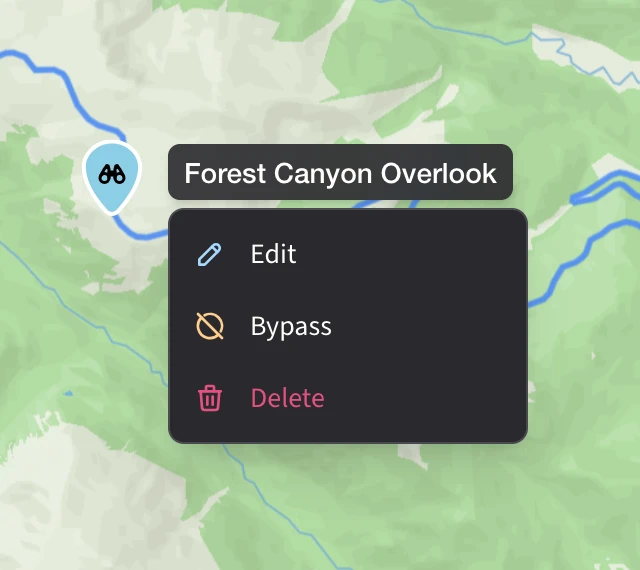
Open a waypoint’s action menu and its name now sits at the top of the menu, so there’s never any doubt which stop you’re about to edit, bypass, or delete.
- Name first. Each menu is headed by the waypoint’s name, in a pill that follows the same shape as the menu below.
- Cleaner clusters. Opening a menu from inside an expanded cluster now collapses the cluster correctly — no more stale spray of markers floating beside the menu.
- Steadier radial menu. The expanded cluster ring behaves more predictably when you tap between waypoints in quick succession.
A Smoother Add Waypoint
The Add Waypoint flow and insertion mode now share one consolidated behavior, which means fewer surprises when you’re building a route.
- Escape dismisses the right thing. Pressing Escape closes the topmost menu first — context menu, insertion dropdown — instead of dismissing everything at once.
- Cleaner touch handling. Tapping a waypoint marker on a phone or tablet no longer competes with map gestures, so markers respond on the first try.
- Same behavior on the public view. Shared map pages track the consolidated editor behavior, so visitors see the same interaction patterns you do.
Rebuilt Public Map View
The shared-map page that anyone (signed in or not) sees has been rebuilt to match the editor — and this release brings it the rest of the way to feature parity.
- Familiar layout. Visitors get the waypoint sidebar, route, and marker styling — the same view you see while you’re planning.
- Elevation, in the sidebar. The interactive elevation profile now shows up on shared maps in the same place it lives in the editor.
- Live hover marker. Hover the elevation chart and a marker glides along the route on the map, with an elevation pill that follows it. Works the same on both your editor and your shared link.
- Matching breadcrumb stats. The header strip now mirrors the editor: total distance, duration, elevation gain and loss, and waypoint count.
- Sign in without leaving the map. Sign In, Sign Up, and Save a Copy now open an in-page modal instead of bouncing you to a separate page.
- Addresses that stick. Waypoint addresses are cached so they survive a page reload — no more blank fields after a refresh.
A Few Things You’ll Just Notice
- The browser tab knows your map. Open a route in the editor or the public view and the browser tab title now reads “your map name • Plot Along” — easy to spot when you’ve got a handful of routes open across tabs.
- A legend for the grade overlay. Turn on the grade-color overlay and a small Uphill / Level / Downhill legend appears above the toggle, so the route’s color story reads at a glance.